Contents
Introduction
Welcome to the Catalog Shopping guide!
You’re hunting for an item, but with the marketplace packed with vendors, where do you even begin? Or maybe you found what you need in the first shop you checked; how do you know if it’s the best deal, or could there be a better price waiting in another shop?
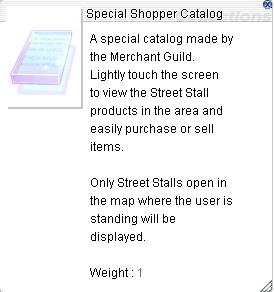
No worries, Universal Catalog Silver is here to help you! Use it to search for items that other adventurers are vending (sell or buy) in the same map you are in and locate the shop.
Need more convenience? The Special Shopper Catalog takes it a step further, letting you not only search but also directly access the shop to complete your transaction.
Say hello to a faster shopping experience using Catalog!

Where to buy?
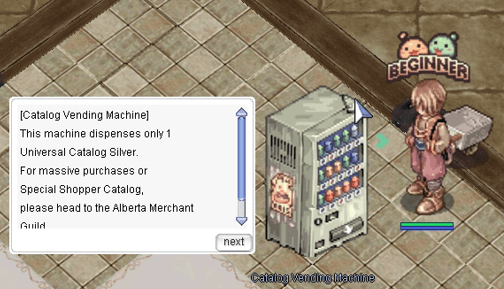
For single purchase of Universal Catalog Silver, head to Eden Group Lobby and purchase it from Catalog Vending Machine inside the ( /navi moc_para01 22/16 ) located near the exit portal.
Each Universal Catalog Silver costs 200 Zeny. You can only buy one at a time, so interact with it again if you need more.
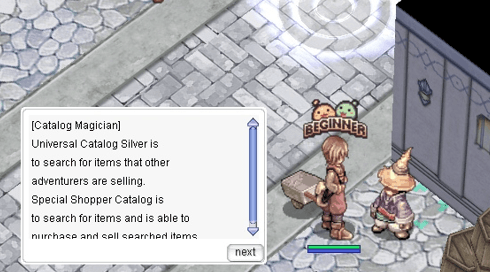
For bulk purchase of Universal Catalog Silver or Special Shopper Catalog, head to the Alberta Merchant Guild to find Catalog Magician inside the ( /navi alberta_in 74/38 ) near the exit portal.
Each Universal Catalog Silver costs 200 Zeny, while each Special Shopper Catalog costs 3000 Zeny. You can buy up to 50 of each at a time.
How To Use
Universal Catalog Silver
- Double click on Universal Catalog Silver in your inventory to open the UI.

- If you are looking for what the vends are selling, keep Type = Sale. If you are looking for what other adventurers are buying, change Type = Buy.
- Search for the item by its name (case sensitive).
- Do not tick “Search exact” to search by the full item name (case sensitive).
- Tick “Search exact” to search by partial name (case sensitive).
- [Optional] [Looking for carded equipment] After “Item” field is filled, you can narrow the search with “Card” field by typing in the card name, prefix or suffix.
- [Optional] [Price range] Use “Zeny” field to set the min and/or max price to see results that match your budget.
- Press the “search” button
- You will see one of the following options:
- Successful search with results
- Successful search without results (No available vends)
- Unsuccessful search, message in red font at bottom of UI
- The selected item does not exist
- Too many results; modify parameters
- For a successful search with results, double click on the “shop name” in the result to see the shop location marked on the mini-map with a white + sign, and the shop name marked with a yellow highlight.
- If you do not see the white + sign on the mini-map, it is likely covered by the existing icons. Zoom in on the mini-map (multiple times if needed) and walk towards the potential areas. It helps to space out the icons for better sight of the white + sign on the mini-map.


- If you do not see the white + sign on the mini-map, it is likely covered by the existing icons. Zoom in on the mini-map (multiple times if needed) and walk towards the potential areas. It helps to space out the icons for better sight of the white + sign on the mini-map.
- With the UI still open, you can walk to the shop to transact
- Continue using the UI, up to 10 valid searches. The number of searches left is indicated in the UI.
- When you have completed your search, close the UI via the small x on the top right of the UI.
Special Shopper Catalogue
The Special Shopper Catalogue works in a similar way to the Universal Catalog Silver, except:
- It is valid for 3 searches only
- When you double click on the shop name for successful results, it asks if you want to “Open shop?”. Click OK to access the shop directly to complete your transaction, without having to walk up to the shop.

Usage Example
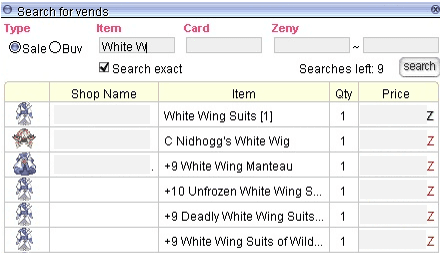
I am looking to buy a White Wing Suits (WWS) for my Ranger, using “Search exact”.
| No. | Scenario | Valid Search? | Error | Comments |
|---|---|---|---|---|
| 1 | I typed the wrong item name as “Whitr”. | No | The selected item does not exist | Type the correct partial item name. Item name is case sensitive. |
| 2 | I searched “White”. | No | Too many results; modify parameters | Search with more characters of the item name. |
| 3 | I searched “White W”. | Yes | Results of all items on vend containing “White W” appears. | |
| 4 | I searched “ng Su”. | Yes | You can search using any part of the item name. More results can appear e.g. Sniping Suit, so choose the search term carefully for broader or more narrow results. | |
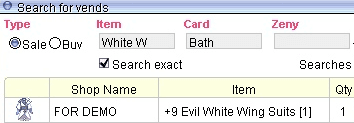
| 5 | I want WWS slotted with Bathory card. Item = White WCard = Bath | Yes | The search results are filtered to show Evil WWS only. You can use card name, prefix or suffix. | |
| 6 | I have a certain budget. Item = White WZeny = ~ 50000000 | Yes | You can set min and/or max Zeny amount and the list will show results within the range. |
Credits to Adventurer J for contributing this guide~
Was this helpful?
2 / 0