
Introduction
The Adventurer Brokerage System is an in-game party recruitment and matchmaking tool that connects adventurers seeking groups with party leaders looking for members. It provides a centralized interface where players can browse available parties or register themselves as available for recruitment.
Through this system, players can:
- Search for parties based on level range, hunting location, or objective.
- Join groups quickly without needing to rely on manual chat recruitment.
- Register as a recruit, allowing party leaders to invite them directly.
- View party details, including leader name, current members, and goals (e.g., leveling, dungeon runs, boss hunts).
This system promotes efficient party formation, reduces downtime in finding groups, and enhances the social aspect of the game. It is especially useful for new players or those returning to the game who may not have established connections yet.
How To Access and Use the Adventurer Brokerage System
You can open the menu by following the steps below:
1. Pressing CTRL+Z
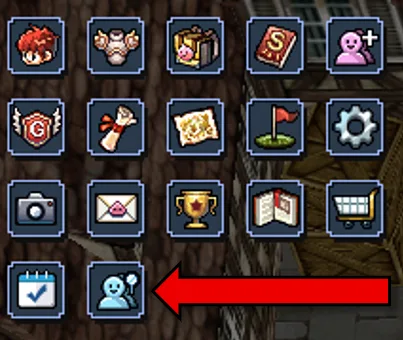
2. Pressing the Adventurer Team icon under the Basic Information Window:
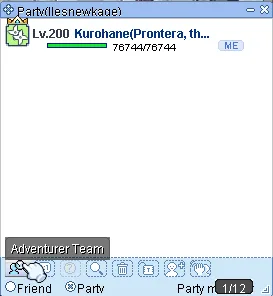
3. Pressing the party window menu ALT+Z then clicking the Adventurer Team icon in the lower left section of the menu:
4. By typing /Agency or /agency in chat.
Understanding the Adventurer Brokerage System UI
Search List Menu
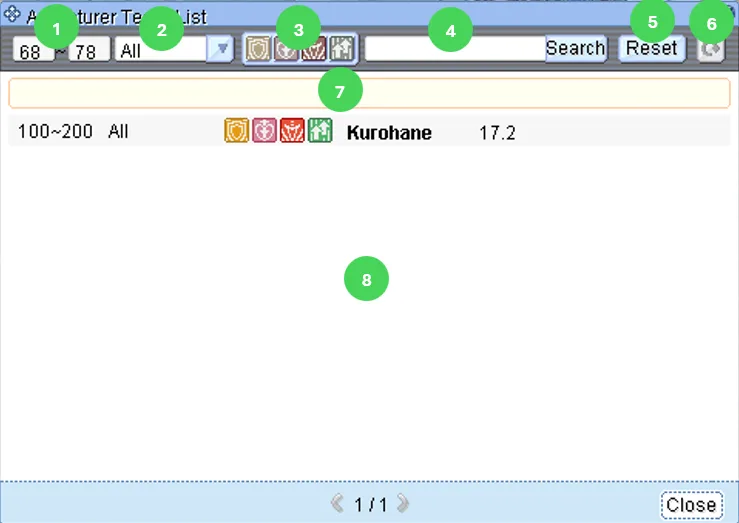
1. Party Condition Level: Enter the levels you want to search. If you don’t, your current level -5 ~ +5 is entered by default.
2. Search Party Destination: Select a destination from the dropbox. If you don’t select a location, the entire region is searched.
Destination Category: Quest, Field, Dungeon, MD, Eden Quest, Etc.
3. Search Party Member Role Conditions: You can search for recruitments that include your chosen role. By default, none of the roles are selected, but this feature is available if you want to narrow down to specific roles.
4. Keyword Search: When you type in a keyword, it will search for the keyword in party names or memo contents and display it in the list.
5. Reset: Clicking on this will clear all your search conditions and allow you to select everything from scratch again.
6. Refresh: Refreshes the list in case any new parties have been created since you first started searching.
7. Register Adventurer Brokerage Agency’s: Button to register “Find Party” with Adventurer Brokerage Agency.
Note: If you are not the party leader, the Adventurer Brokerage Agency Registration button won’t be active.
8. Shows a list of other registered messages by other players looking for a party.
When you left-click on one of them, the Subscription Application window opens up.
If you right-click instead, a whisper conversation window pops up with the party leader.
Team Registry Menu
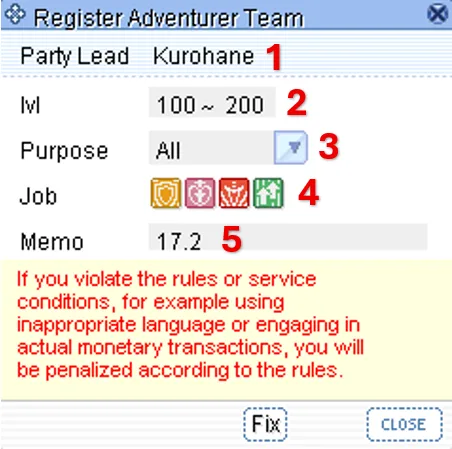
1. Party Leader: The name of the player who registered the recruitment message display on the Adventurer Brokerage Agency. You cannot change this portion.
2. Level: You can enter the level you want to recruit. -5 ~ +5 of the party leader’s level is registered by default.
3. Purpose: Select the destination from the dropbox. If you do not select anything, the entire region is registered.
Destination Category: Quest, Field, Dungeon, MD, Eden Quest, Etc.
4. Roles: Select the roles (DPS/Healer/Tank/Support) you want to recruit. If you don’t select any, it will include all roles.
5. Memo: Add a simple memo that others will see in the Adventurer Brokerage Agency listings. A max of 24 characters can be entered.
Please note that you can always edit your listing by selecting it in the Adventurer Brokerage Agency and opening up the registration window again.
Creating a Party Listing
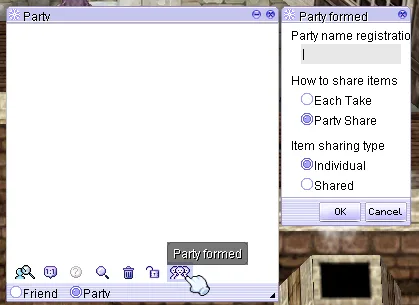
- First, create a party by using
/organize <party name>or by pressing Alt + Z and clicking the “Party Formed” button.
- Next, open the Adventurer Agency by pressing Ctrl + Z (or through the menu options) mentioned here.
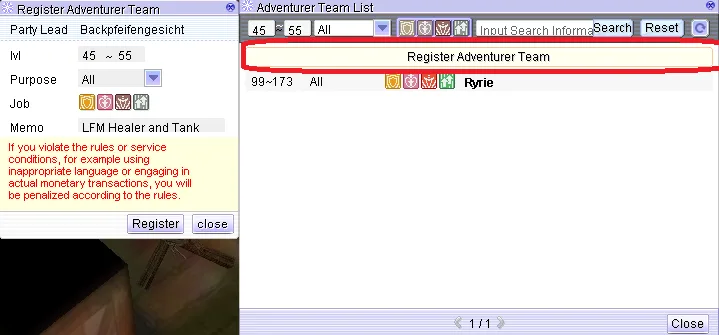
- Click Register Adventurer Team to open the party registration window.
- In this window, you can set the following:
Level Range – Set the minimum and maximum level
Purpose – Choose what your party is for (Quest, Dungeon, Instance, etc.)
Job Roles – Select the roles you are looking for (Tank, Healer, Damage Dealer, Support)
Memo – Add your recruitment message
See example below:
- Once everything is set, click Register to post your party listing.
Joining a Party
- Open the Adventurer Agency using any of the available ways to open it.
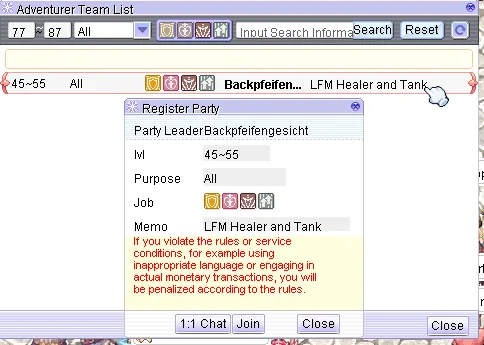
- If there are active listings, simply click on a party you’re interested in.

- Once you select a party, a new window will appear similar to the party registration UI. This time, you will see options for 1:1 Chat and Join.
1:1 Chat lets you message the party leader directly. You can use this to inform them of your role or class before joining.
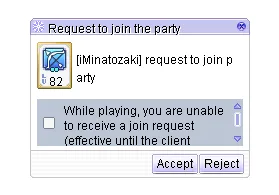
Join sends a request to enter the party immediately. - Once you click Join, the party leader will receive a popup notification that someone wants to join their party.
Note: If you do not meet the required level range, clicking Join will not have any effect.
Was this helpful?
2 / 0